Blazingly Fast GT VPN
By Ken Shibata
Published on
Georgia Tech’s VPN is required to access quite a few on-campus services, including the networked printers, virtual desktops, and the supercomputers (PACE). However, connecting to the VPN requires 2FA (which is good, to be clear!), which can be cumbersome fumbling with the phone, opening Duo, and clicking the green circle. This is especially frustrating when I have my phone in my bag, around a metre away! I got a YubiKey over the summer to try to connect with just one button press, command, and a few seconds, and the following will be a list of steps to get it working.
Getting Set Up with a YubiKey
The YubiKey quiz is great for figuring out which YubiKey to get. Just make sure to get one that can connect to your device via USB, as the specific method used will require the YubiKey to act as a USB keyboard (so YubiKey OTP must be used). I got the YubiKey 5C Nano, since I was using a MacBook over the summer.1
Once you get a YubiKey, you can set it up by going to the 2FA page on Passport, clicking the “Add (another) token” button, selecting “YubiKey,” and following the wizard there.
Setting up the VPN
I’m on Linux, and that means I use OpenConnect as my client program to connect (GT uses GlobalProtect AFAIK). I also expose the VPN connection via a local SOCKS proxy, which lets me choose which apps to route through the VPN. This helps keep my personal communications fast and secure (note that there is no expectation of privacy on Institute networks).
First, get started by installing OpenConnect and ocproxy (turns the VPN connection into a SOCKS proxy).
Next, set up a systemd service (ocproxy.service) like the following (Arch Linux Wiki page on writing systemd service):
# /etc/systemd/system/ocproxy.service
[Unit]
Description=OpenConnect VPN proxy

[Service]
CapabilityBoundingSet=
ExecStart=/path/to/your/script
LoadCredential=password:/path/to/your/password.txt
# ↑ or encrypt it with systemd-creds(1)
LockPersonality=true
MemoryDenyWriteExecute=yes
NoNewPrivileges=true
PrivateDevices=true
PrivateTmp=true
PrivateUsers=true
ProtectClock=true
ProtectControlGroups=true
ProtectHome=true
ProtectHostname=true
ProtectKernelLogs=true
ProtectKernelModules=true
ProtectKernelTunables=true
ProtectProc=invisible
ProtectSystem=strict
RemoveIPC=true
RestrictAddressFamilies=AF_UNIX
RestrictAddressFamilies=AF_INET
RestrictAddressFamilies=AF_INET6
RestrictNamespaces=yes
RestrictRealtime=true
RestrictSUIDSGID=true
StandardError=journal
StandardInput=socket
StandardOutput=journal
SystemCallArchitectures=native
SystemCallFilter=@system-service
User=ocproxy
And a socket unit as well (we’ll get back to this):
# /etc/systemd/system/ocproxy.socket
[Unit]
Description=OpenConnect VPN proxy socket for OTP

[Socket]
ListenFIFO=/run/ocproxy-otp
SocketMode=0600
SocketUser=root

[Install]
WantedBy=multi-user.target
Write a shell script somewhere (replace /path/to/your/script with the path to the script below):
#!/usr/bin/env sh
set -eu

read -r OTP
export PASSWORD_FILE_PATH="$CREDENTIALS_DIRECTORY/password"
{ cat "$PASSWORD_FILE_PATH"; echo; echo "$OTP"; } | \
openconnect \
  --verbose \
  --protocol=gp \
  --user=gburdell3 \
  --script-tun --script 'ocproxy -D 11080' \
  dc-ext-gw.vpn.gatech.edu

# NOTE: there is also ni-ext-gw.vpn.gatech.edu as well
Once you have that set up, you can just open a terminal:
$ sudo tee /run/ocproxy-otpAnd long tap4 the gold button on your YubiKey. This will enter an OTP key, which is sent to the /run/ocproxy-otp FIFO, which will in turn start ocproxy.service with the OTP key. All of this completes in a few seconds on my laptop!
Now we have a local SOCKS proxy server we can point any program to. In the next two sections, we’ll see how to redirect some programs to use this proxy server, so it seems as if it’s connected to the VPN directly.
SSH Proxy
Getting SSH to connect to PACE through the proxy can be done with a single option in your SSH client config (cf. ssh_config(5)):5
Host *.pace.gatech.edu
  ProxyCommand nc -X 5 -x 127.0.0.1:11080 %h %p
Firefox
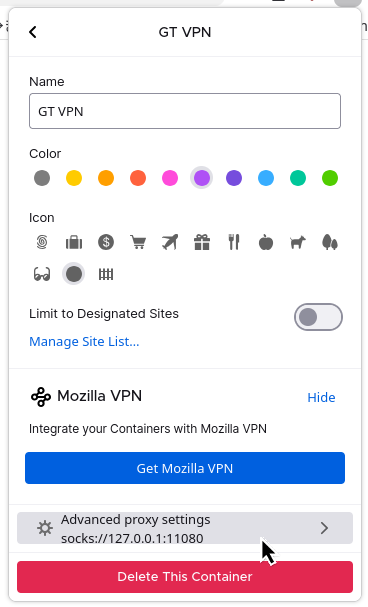
Firefox has a feature called Multi-Account Containers which—most importantly for this post—lets you set a proxy for a group of tabs. Since it can map certain sites to a container, I’ve set it up to open the “GT VPN” container for network printing and PACE.
To set it up, install the feature and make a container for the VPN. Then, in the configuration window, go to “Advanced proxy settings” and set the proxy to socks://127.0.0.1:11080. Once that the container is set up, you can to go any website (e.g., OnDemand) then press the extension to “always open this site in GT VPN.” This will set the site to always open with the GT VPN container, and so will always use the proxy!
Happy Blazingly Fast Connecting!!!
Your YubiKey can also be used as a Passkey (i.e., a FIDO2 resident key)! It’s the only phish-proof authentication method widely available (I wish more banks would support it), making it a great choice for important webapps and accounts. I use it to login to my wiki, as well as numerous other webapps I use. Since the passkey “lives” in a tangible object, it’s easier to grasp than platform keys (i.e., passkeys tied to your phone or laptop). From a server-side perspective, implementation is far simpler than U2F (a.k.a. WebAUthn) or TOTP.6 All that is to say, I would say a YubiKey is a great device to have in general.
Lastly, thank you to the lovely person at OIT who answered my questions about setting up YubiKey on Passport and using it with Duo.
I hope this helps!
- 1My ThinkPad was having hinge issues.
- 2I’m transitioning to Colemak, and I’m on Tarmak stage 2 now.
- 3this encoding format is called ModHex.
- 4Try just tapping it if a long tap doesn’t work.
- 5I also set
ForwardAgent yesso I can do git clone without leaving an SSH keypair on PACE. - 6For example, with TOTP, you have to worry about replay attacks and clock drift.